
Android Beta APP · J13
Download the Android Beta APP.
Current Android test version: 1.7.6 review. Tap the orange button to download J13-DEMO-STILLMOVING-v1.7.6-review.apk (about 74 MB). Please use made up examples while testing.
- Find the file. Tap the completed download notification, or open Files / My Files → Downloads. Look for J13-DEMO-STILLMOVING-v1.7.6-review.apk.
- Open it. Tap the file. Android may ask whether to allow installation from the browser or Files app you used.
- Allow this install. If you trust this beta download, choose Settings, allow installs from that source, return to the file and tap Install. Android wording differs between phones.
- Open Still Moving. The installed app has the orange J13 icon. Keep a note of anything confusing and tell us on the feedback page.
Match the pictures to your phone
These pictures show the usual steps. Your phone may use slightly different words or colours.


If your phone says the app is harmful or blocks it, stop and contact us. Do not turn off Play Protect.
Android settings screenshot: Google / Android Developers, used under CC BY 4.0. View the original. Other step pictures: Still Moving.
How to save a voice recording
The pictures show a practice example.
Choose a heading · Record my voice
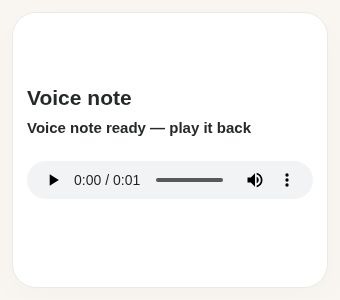
Stop and play your recording. 
Save M.O.T entry Your draft stays on this device when you move to another page. Saved audio appears in M.O.T history.
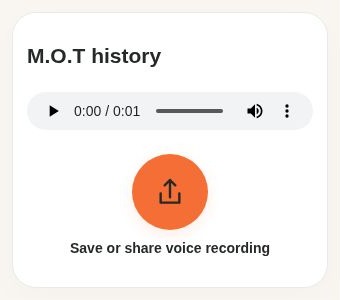
Save or share voice recording Open My records, then M.O.T history, to play or share your saved recording.
Sharing to Google Drive creates a separate copy. Your recording stays a draft until you save it in Still Moving.
Voice and translation in this beta
Speak to text writes words as you speak, if your phone supports the language. Check the words before you save or share them. A saved voice recording is a separate audio file. This beta cannot turn that saved recording into text.
On Android, you can translate the words you spoke or typed into a supported language and include both versions in a text export. The first translation may need to download a language pack. Pashto and Kurdish text translation are not available in this beta. The iPhone Web App does not translate personal words automatically.
If your phone or workplace blocks app installation, do not change organisation security settings. You can use the web version or ask us for help.